


Web application scans use a Selenium login script to sign in to the application. The script records the login flow so the scanner can repeat it during an assessment, including multi-page logins and redirects to third-party identity providers.
## Before You Begin
You need:
- Google Chrome
- The [Qualys Browser Recorder extension](https://chromewebstore.google.com/detail/qualys-browser-recorder/abnnemjpaacaimkkepphpkaiomnafldi)
- A test account that the scanner can use to sign in
## 1. Record the Login
1. In Chrome, open the login page for the application you want to scan.
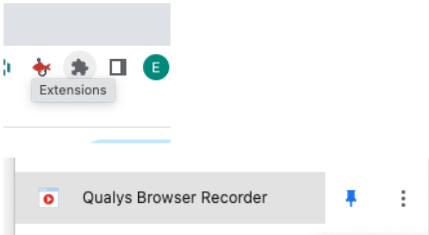
2. Open **Qualys Browser Recorder** from the Chrome extensions menu.
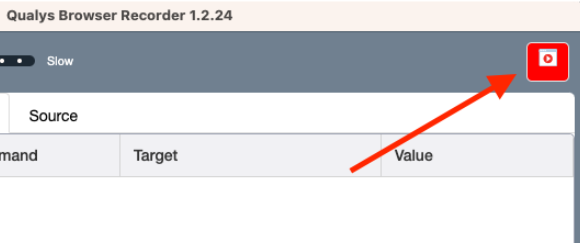
3. Start recording.
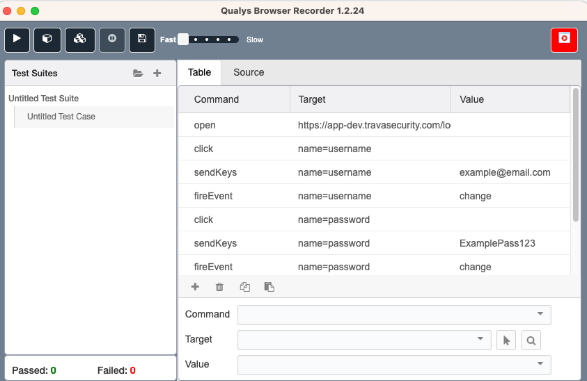
4. Sign in with the same username and password that you will enter in the Trava platform.
5. Continue until you reach the first page that confirms you are signed in.
6. Stop the recording.
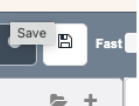
7. Save the recording, then open the saved file in a text editor.
Do not replace or remove the recorded username and password. The Trava platform replaces those values with secure placeholders when you add the script.
## 2. Add the Script in Trava
1. In the Trava platform, open the web application scan configuration.
2. Enter the application's login page in **Enter App Login URL**.
3. Enter the **Username** and **Password** used in the recording.
4. Copy the entire contents of the saved recording and paste it into **Paste Selenium Script**.
5. Review **Enter Regex Authentication Text**.
6. Select **Add Web Application**, then start the assessment when you are ready.
The username and password must exactly match the values captured in the recording. Trava automatically replaces them in the saved script with `@@authusername@@` and `@@authpassword@@` so the script does not retain the credentials in plain text.
## 3. Change the Authentication Regex if Needed
After you paste a Selenium script, Trava sets the authentication regex to `.*` unless the field already has a value. You can replace it with text that appears only after a successful login to verify that the script reached an authenticated page.
For example:
- Use `Logout` when a **Logout** link appears only after sign-in.
- Use `Welcome\s+Alex` to match **Welcome Alex** with one or more spaces between the words.
- Use `Account Overview` to match that exact text anywhere on the page.
Do not wrap the expression in `/` characters. For example, enter `Logout`, not `/Logout/`.
Choose text that unauthenticated users cannot see. Avoid generic text such as the application name because it may also appear on the login page.
## Troubleshooting
- **The username or password does not match the recording:** Record the login again with the same credentials entered in Trava, or correct the corresponding field.
- **The script format is rejected:** Paste the complete HTML recording, including its table rows and cells, rather than only the recorded commands.
- **The scan signs in but reports an authentication failure:** Update the authentication regex to match text on the authenticated landing page.
- **The login requires CAPTCHA, a one-time code, or manual approval:** The recorded flow may not be replayable without changing the application's test-login requirements.

